
Texture Pack Installation
- Visit the official download page: https://legendaryrttextures.com/project/legendary-rt-java-textures/.
- Click "Download" in the project hero to jump to the download section.

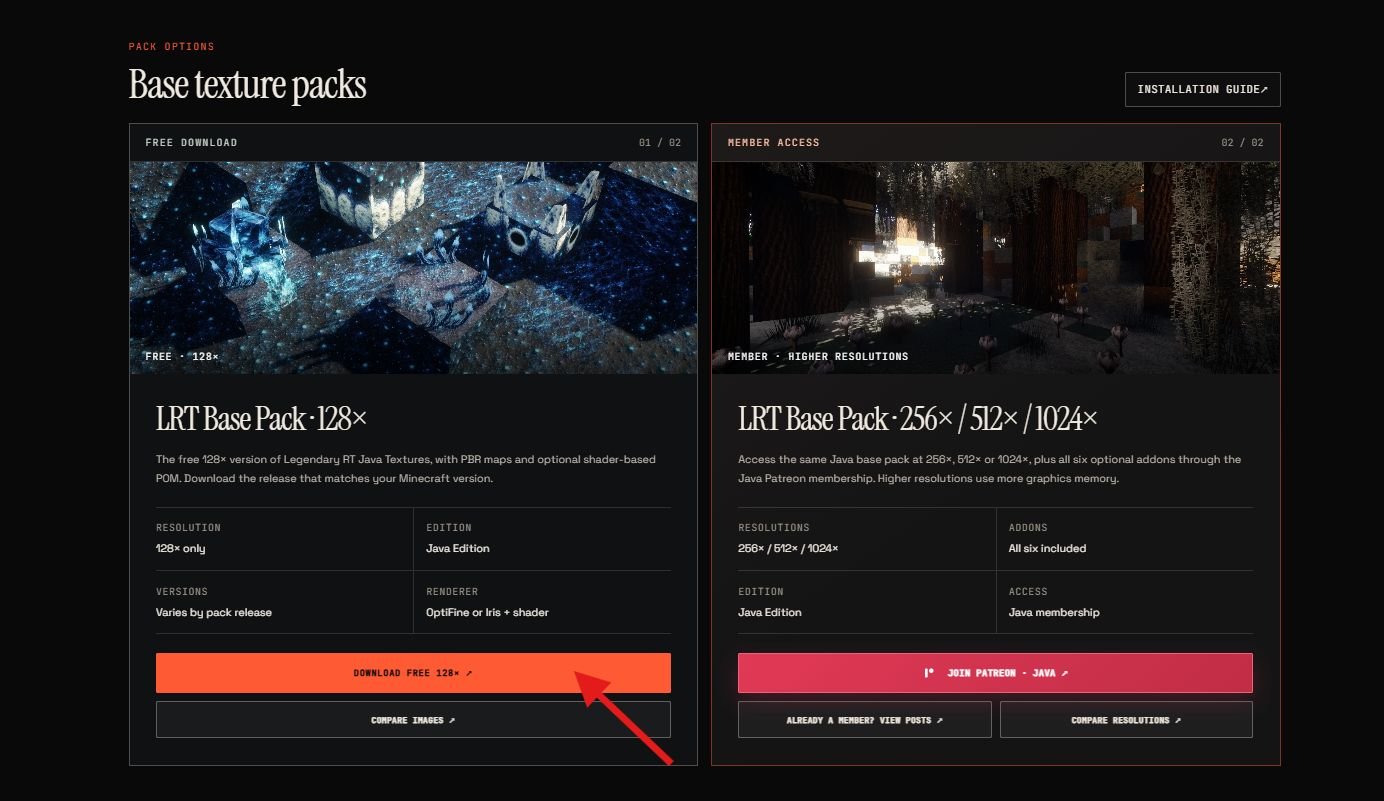
- Under "Base texture packs," click "Download Free 128×" to download the free pack.

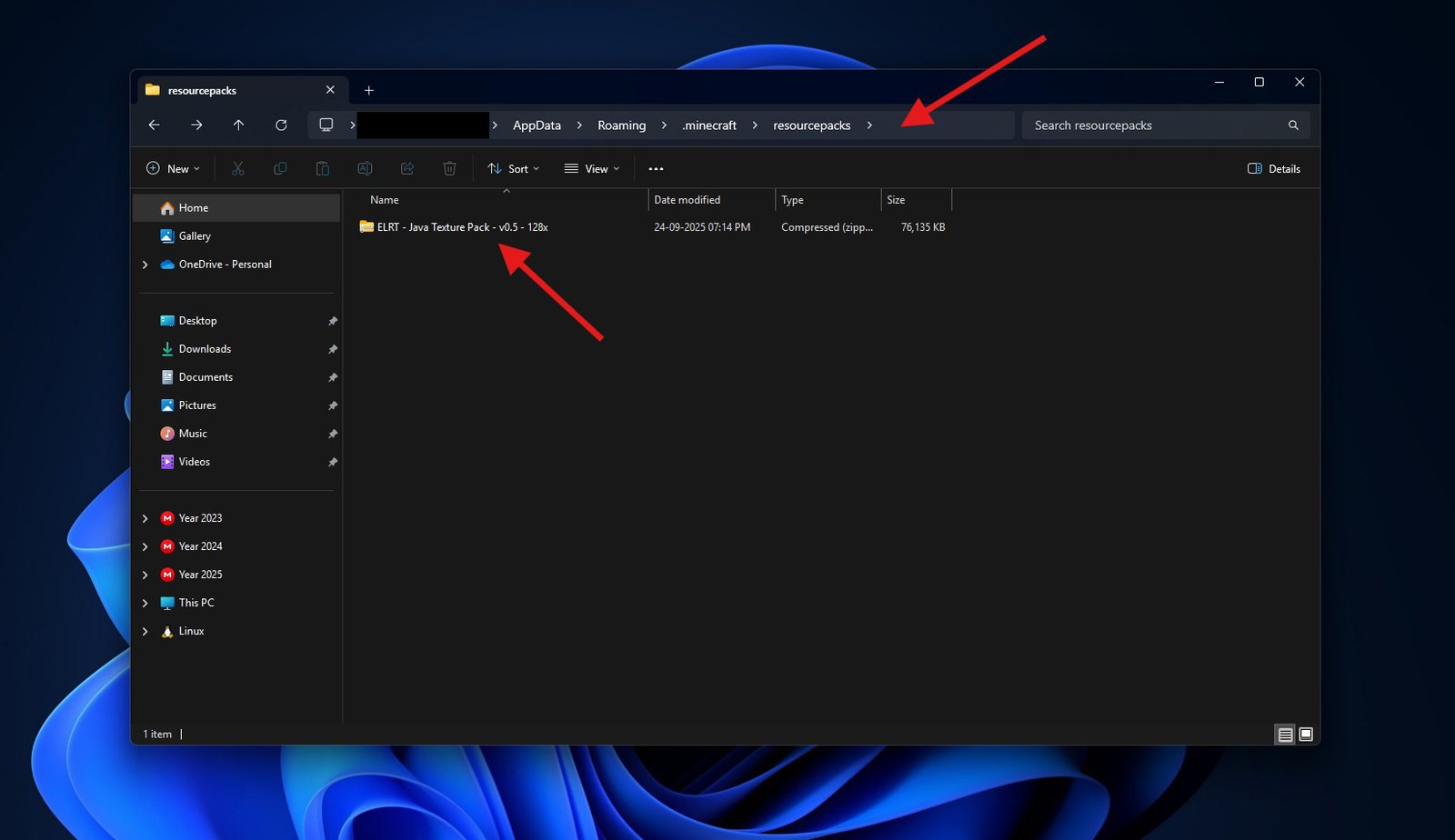
- Press Windows key + R, type
%appdata%, press Enter, navigate to.minecraft/resourcepacks, and place the ZIP file there (do not extract it).

Optifine Installation
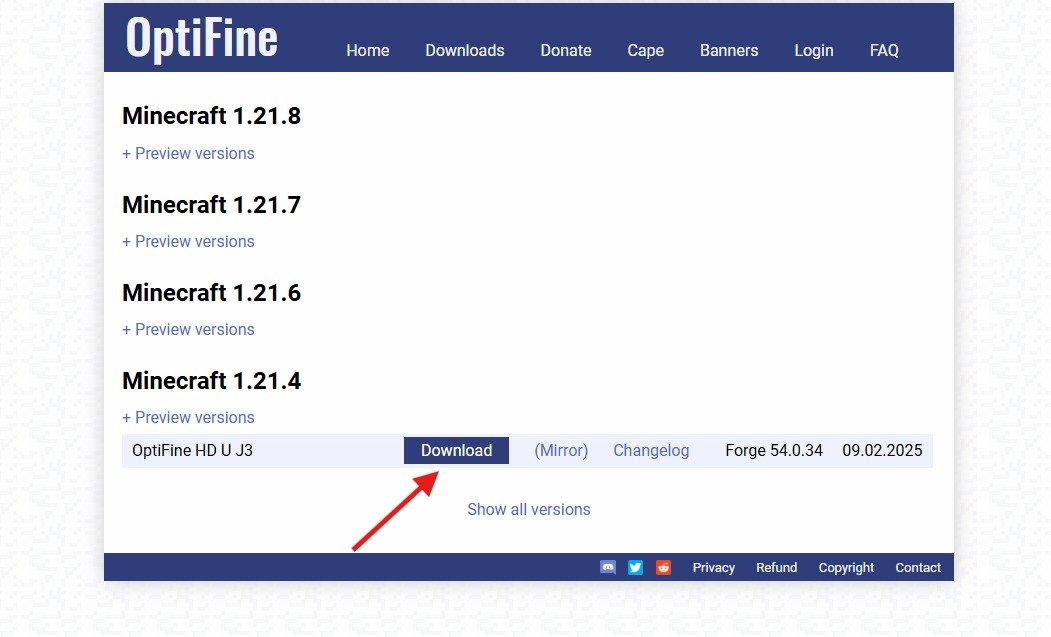
- Go to the OptiFine download page: https://optifine.net/downloads.
- Select the matching Minecraft version (avoid previews) and download the OptiFine installer.

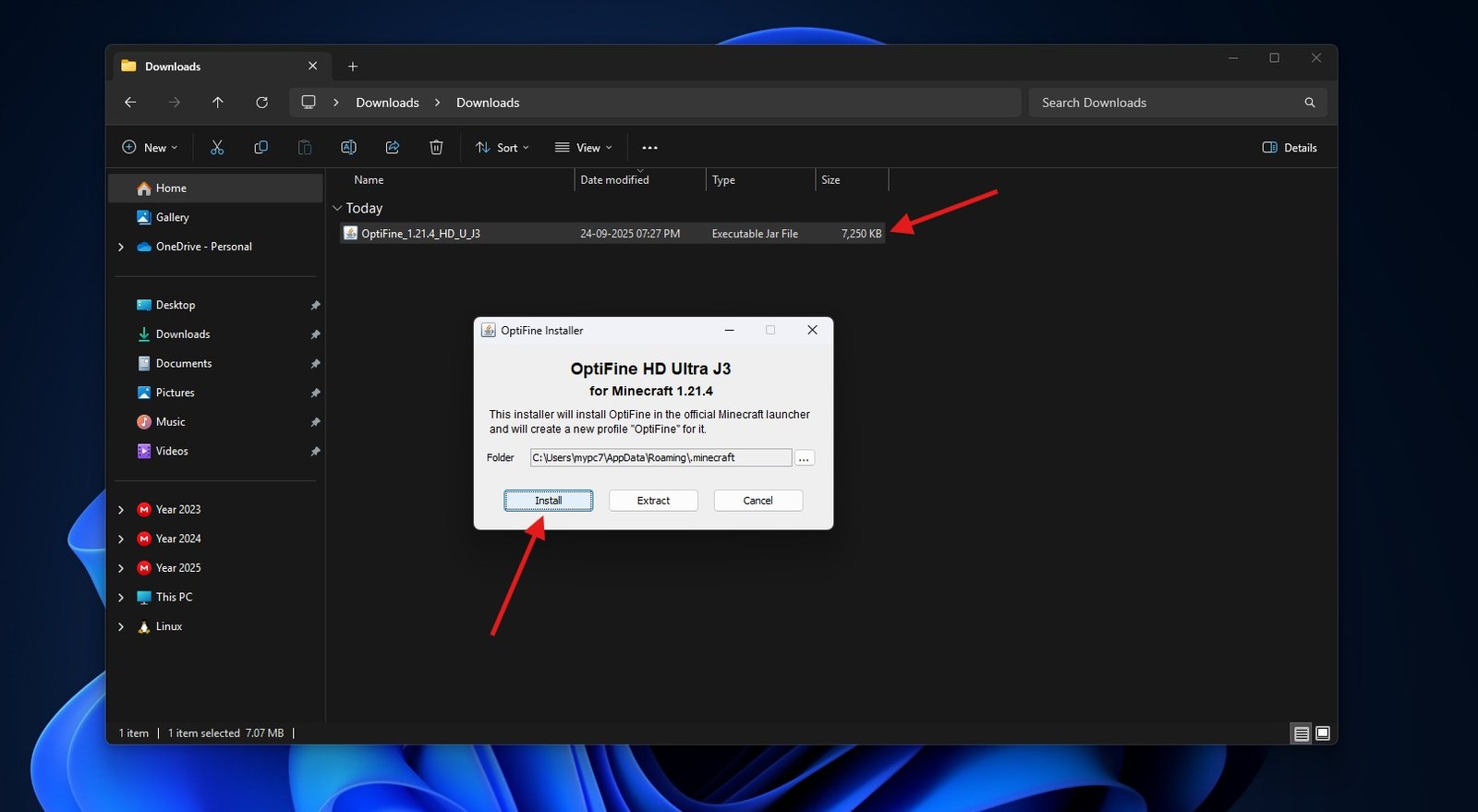
- Double-click the .jar file to run the installer and follow the prompts to install OptiFine.

Shader Installation
- Download your preferred shader pack. For the best experience with LRT Java Textures, we recommend SEUS PTGI HRR 2.1. See the full shader setup guide for more details.
- Copy the shader ZIP to
C:\Users\%USERNAME%\AppData\Roaming\.minecraft\shaderpacks(do not extract).

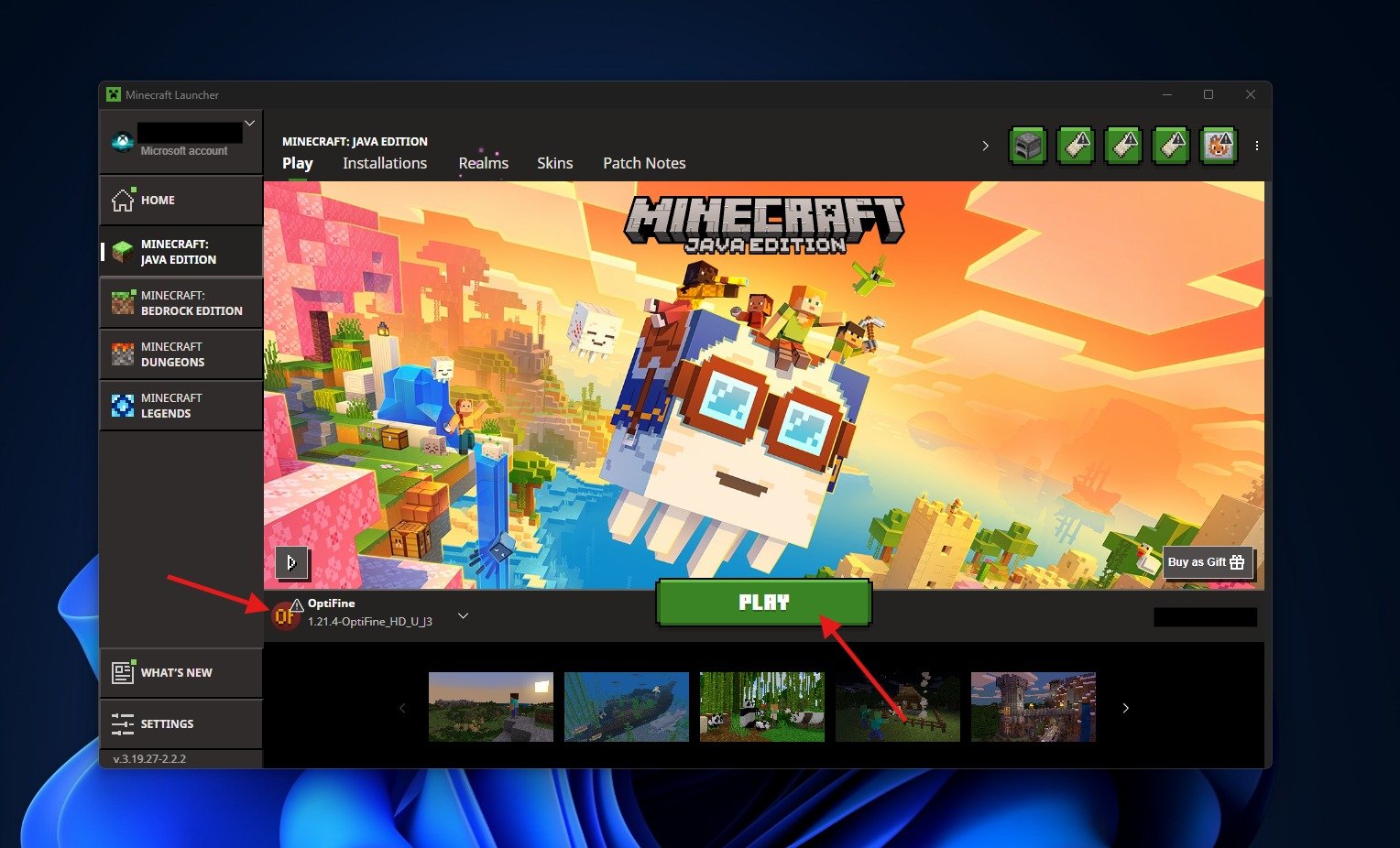
Start Minecraft With Installed Optifine
- Launch the Minecraft Launcher.
- Select the OptiFine version and click Play.

Activate Texture Pack and Shaders
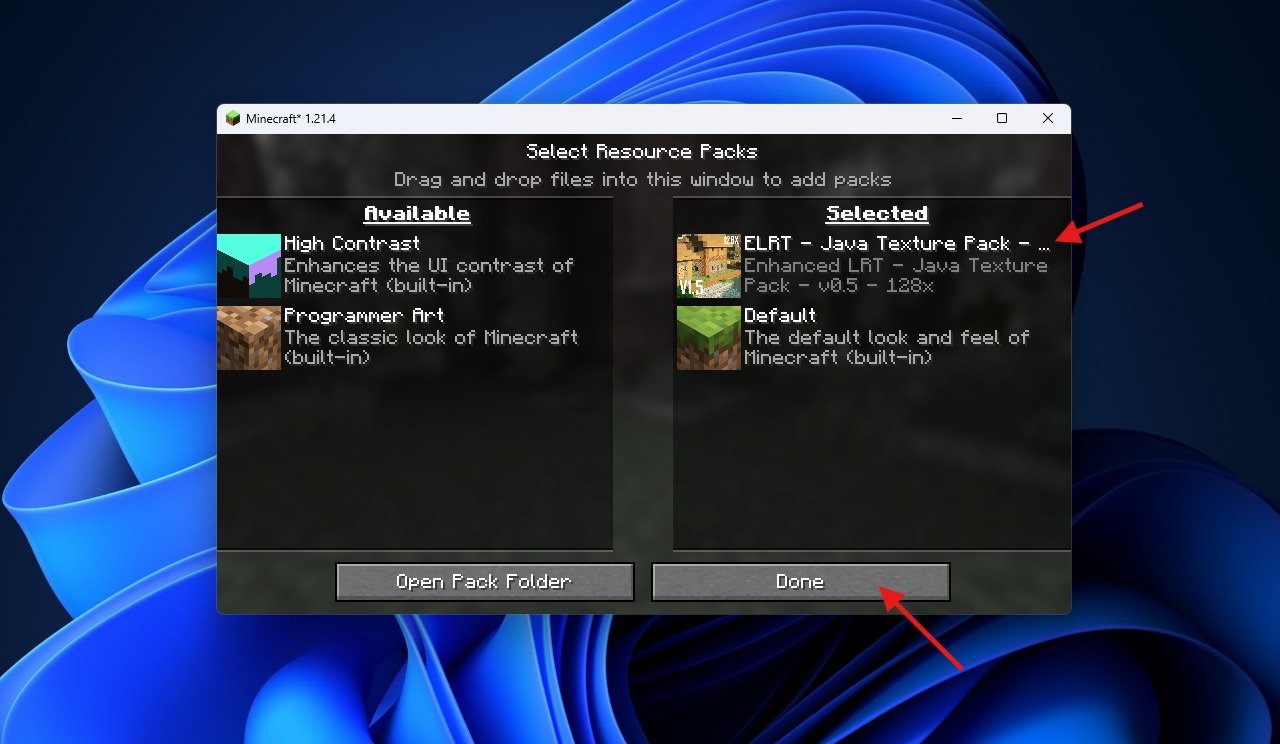
- Go to Options > Resource Packs, move LRT Java Textures to Selected, and click Done.

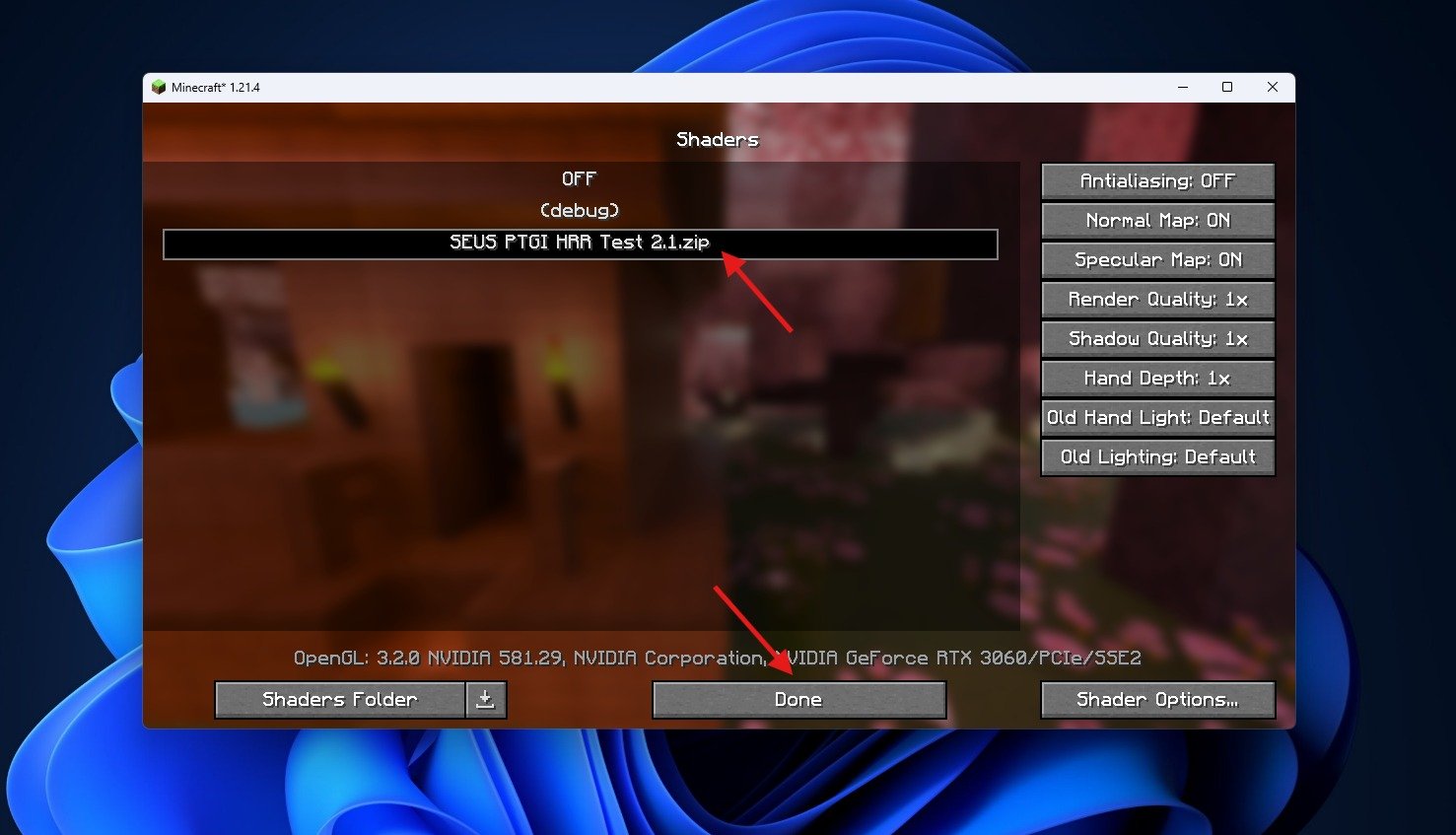
- Go to Options > Video Settings > Shaders. Select your shader pack from the list on the left, then click Done to apply it.

Load into your world or create a new one to experience the enhanced visuals with LRT Java Textures and OptiFine. Enjoy your upgraded Minecraft adventure!